MiniMax image-to-video model
MiniMax H3 Image to Video
MiniMax H3 Image to Video turns a still into a short clip with optional last-frame control and native audio. On RenderFlow AI, this model costs 4 credits per second at 480p or 8 credits per second at 768p, for 5 to 15 seconds. Prefer text-only prompts? Use MiniMax H3 Text to Video.
- Image to video
- 480p or 768p
- 5 to 15 seconds
- 4 credits per second at 480p or 8 credits per second at 768p.
Controls and prices below match the RenderFlow AI model as of 6 November 2026.
Generate a MiniMax H3 image to video clip
Upload the still that should open the shot, describe the motion and soundtrack, and choose 480p or 768p. A last frame is optional. The output follows the first frame's aspect ratio.
Your generated video will appear here.
Enter a prompt and click 'Generate Video' — or start from an example:
MiniMax H3 image to video examples
Each pair shows the starting still beside the clip it produced. The stills were made with Z Image Turbo. The clips are MiniMax H3 Lite samples at 480p for 4 seconds. On RenderFlow AI, MiniMax H3 image to video starts at 5 seconds and can also run at 768p.
MiniMax H3 video example: hiker push-in, Lite sample
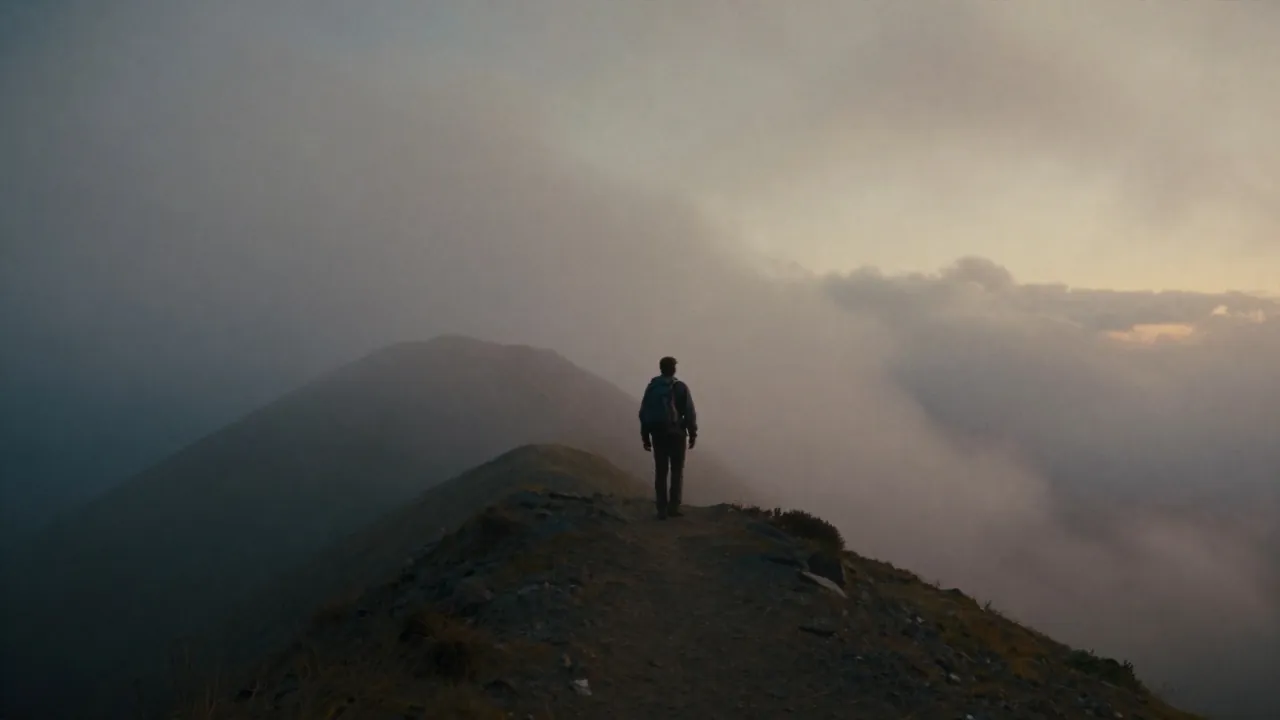
Prompt used for this MiniMax H3 Lite sample
Slow cinematic push-in toward the hiker on the misty ridge; low clouds drift across the peaks; warm sunrise light intensifies; subtle wind in clothing; ambient mountain wind audio
MiniMax H3 ramen steam example, Lite sample
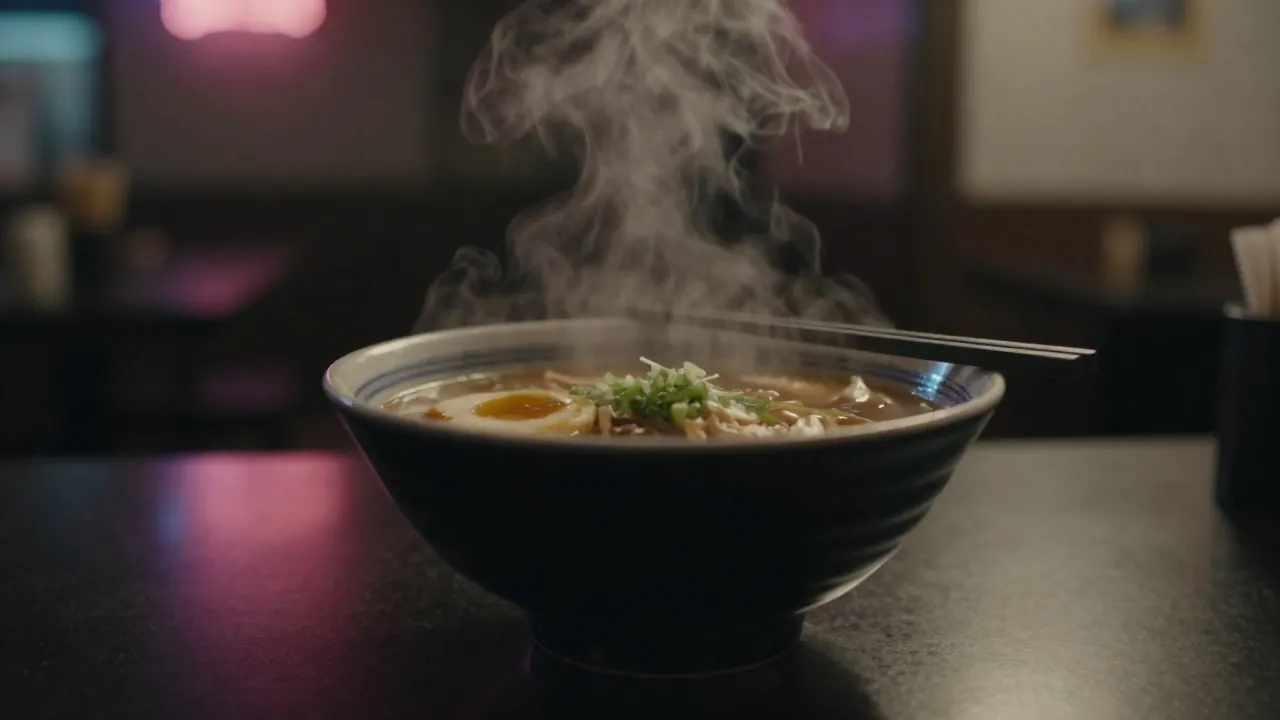
Prompt used for this MiniMax H3 Lite sample
Gentle steam rises from the ramen bowl; chopsticks lift a few noodles; neon reflections shimmer on the counter; soft ambient restaurant night audio
What is MiniMax H3 image to video?
MiniMax H3 image to video is the image path for MiniMax H3 on RenderFlow AI. You supply a first frame and a prompt. The model animates that frame, can aim the motion at an optional last frame, and generates native audio from the soundtrack you describe.
MiniMax AI video, and where this page sits
On RenderFlow AI, this model uses 480p or 768p for 5 to 15 seconds. A first frame is required, and a last frame is optional. 2K, a 4-second duration, reference video, and a source-video upload are not available here.
Using this page as a MiniMax AI video generator
Use MiniMax H3 image to video when you already have a still. Use MiniMax H3 Text to Video when you only have a prompt. Both run on RenderFlow AI.
MiniMax H3 image to video controls
The first frame, the optional last frame, and native audio decide whether the clip stays faithful to the still.
First frame
The first frame is required. RenderFlow AI uses its aspect ratio for the output, so crop the still the way you want the video to look before you upload it. Sharp subjects with a little room to move work better than crowded frames, tiny text, or heavy overlays. If you still need a picture, generate one with Z Image or another model in the AI image generator, then come back.
Last frame
The last frame is optional. Use it when the ending still is already approved and the job is the motion between two images. Leave it off when you only want the opening frame to come alive. The canvas keeps the control available without requiring it.
Native audio
The prompt field asks for the motion, the scene, and the soundtrack. RenderFlow AI generates native audio from that description, so write the sound you want instead of planning a silent clip and adding audio later. MiniMax H3 text to video generates native stereo audio. This image-to-video model generates native audio.
MiniMax H3 image to video specs and pricing
These are the controls available for this model on RenderFlow AI.
MiniMax H3 video generation settings and credits
| First frame | Required. The output follows this image's aspect ratio. |
|---|---|
| Last frame | Optional. |
| Prompt | Required. Describe the motion, the scene, and the soundtrack. |
| Resolution | 480p or 768p. Default 480p. 768p costs twice the credits of 480p. 2K is not a choice here. |
| Duration | 5 to 15 seconds, default 5 seconds. Whole seconds only. A 4-second length is not in this list. |
| Seed | Optional. Use -1 for a random seed. |
| Credits | 4 credits per second at 480p or 8 credits per second at 768p. Pricing explains how plan credits and permanent credits are spent. |
| Audio | Native audio from the prompt. There is no separate audio upload on this endpoint. |
| Duration | 480p | 768p |
|---|---|---|
| 5 seconds | 20 credits | 40 credits |
| 10 seconds | 40 credits | 80 credits |
| 15 seconds | 60 credits | 120 credits |
How to prompt MiniMax H3 image to video
A MiniMax image to video workflow
Approve the still, direct the motion, then spend credits on the resolution you actually need.
-
1. Lock the frame before you write motion
The first frame already decides the subject, crop, and lighting. Use the prompt for what moves, how the camera travels, and what must stay unchanged.
-
2. Ask for one continuous action
A push-in, drifting clouds, rising steam, or a single gesture is enough for a short clip. A new location, a crowd, or a second scene fights the still you uploaded.
-
3. Add a last frame only for a specific ending
Upload a last frame when the clip has to land on a composition you already approved. Leave it empty for atmosphere, steam, fabric, or a simple camera move.
-
4. Name the soundtrack in the same prompt
This endpoint generates native audio from the prompt. Name the place sound you want, such as mountain wind or a quiet restaurant, and skip dialogue unless a person is clearly the speaker.
-
5. Draft at 480p, then spend on 768p
480p costs half of 768p per second. Confirm the motion, then rerun the same prompt and frames at 768p when the shot is the one you want to keep.
MiniMax H3 image to video versus text to video and Hailuo
Choose MiniMax H3 image to video when the still is already done. Choose MiniMax H3 text to video when you only have a prompt. Hailuo is the other MiniMax video family on RenderFlow AI.
| Image to video | Text to video | |
|---|---|---|
| Start from | A required first frame, plus an optional last frame | A text prompt only |
| Resolution | 480p or 768p | 480p or 768p |
| Duration | 5 to 15 seconds | 5 to 15 seconds |
| Credits | 4 credits per second at 480p or 8 credits per second at 768p | 4 credits per second at 480p or 8 at 768p |
| Audio | Native audio from the prompt | Native stereo audio from the prompt |
| Open | This page | MiniMax H3 Text to Video |
Hailuo AI MiniMax image to video versus this page
Hailuo 2 Standard Image to Video is the lower-cost MiniMax still-to-motion test: 5 credits per second, at 6 or 10 seconds, from one image. Hailuo 2 Pro Image to Video is priced at 50 credits per video and is described as 1080p. Its canvas takes an image and a prompt, not a last frame. The matching text pages are Hailuo 2 Standard Text to Video and Hailuo 2 Pro Text to Video.
MiniMax H3 AI video generator choices beside this page
Wan 2.7 Image to Video also takes a first frame and an optional last frame, at 720p or 1080p, for 2 to 15 seconds, with pricing that starts at 20 credits for 2 seconds. Kling v2.5 Turbo Pro Image to Video animates one image for 5 or 10 seconds at 35 credits per 5 seconds. Sora 2 Image to Video is 10 credits per second at 4, 8, or 12 seconds, which is the nearby option if you specifically need a 4-second clip. For a prompt with no still, Sora 2 and Kling v2.5 Turbo Pro Text to Video are text-to-video pages, not substitutes for this one.
MiniMax H3 image to video FAQ
What is MiniMax H3 video generation best for?
It is for animating a still you already like: a product photo, a generated keyframe, or a scene whose composition should stay put while the camera, the atmosphere, or one small action moves. Use it when you want an optional last frame and a soundtrack written into the prompt. Skip it when you have no image, need a clip shorter than 5 seconds, or need 2K on RenderFlow AI.
How much does MiniMax H3 video cost on RenderFlow AI?
RenderFlow AI bills 4 credits per second at 480p or 8 credits per second at 768p. The default 5-second 480p clip is 20 credits. A 15-second 768p clip is 120 credits. New accounts receive 35 credits a month on the Free plan, which covers one 5-second 480p draft and not a 768p clip. The canvas shows the price before you generate. Plan details are on the pricing page.
Do I need an API key for this MiniMax AI video generator?
No. RenderFlow AI runs the model with your RenderFlow AI account and credit balance. You do not create a MiniMax key or send the request to the MiniMax API yourself.
How should I prompt MiniMax H3 video generation?
Upload the first frame, then describe motion, camera, and soundtrack. Say which parts of the still must stay consistent. Ask for one continuous shot. Add a last frame only when the ending image is already decided. Check a 480p draft before you pay for 768p.
How does MiniMax AI video here differ from text to video?
This page requires a first frame and can take an optional last frame. MiniMax H3 Text to Video starts from the prompt alone and generates native stereo audio. Both use 480p or 768p and 5 to 15 seconds, at the same credit rates. Use text to video when you do not have a still.
When should a MiniMax image to video workflow use a last frame?
Upload one when the ending composition is part of the job: a product that must finish facing camera, a move between two approved stills, or an end frame with empty space you plan to design around. Skip it when you only need steam, fabric, light, or a slow push-in. A last frame can fight that simpler motion.
Does MiniMax H3 image generation work on this page?
No. This endpoint does not create a still image. MiniMax H3 image generation is a separate job. Make the picture with an image model, then upload that still here and animate it.
Is MiniMax H3 video to video supported on RenderFlow AI?
Not on this page. The controls are a first frame and an optional last frame, plus a prompt. There is no source-video upload, so a video-to-video edit is not available here.
Why are these MiniMax H3 clips 4 seconds?
The two clips on this page are MiniMax H3 Lite samples rendered at 480p for 4 seconds. This page runs MiniMax H3 image-to-video, and its duration control is 5 to 15 seconds. Treat the clips as motion examples from the same family, not as a 4-second setting on this canvas.
Start MiniMax H3 image to video
Upload the still, describe one motion and the soundtrack, and generate at 480p before you move to 768p. If you do not have a frame yet, write the shot on MiniMax H3 Text to Video instead.
Open the generator